


Popular articles



All PC requirements for Borderlands 4 – specs, settings, accessibility
Table of Content

Gearbox has published a comprehensive rundown of Borderlands 4 on PC – from baseline and recommended hardware to the full graphics menu and the game’s accessibility options. The studio outlines performance targets tied to settings presets and lists every toggle available at launch. The information below comes directly from the official announcement and is intended to help players prepare their rigs ahead of release. Promotional content has been removed to keep the focus on factual details.
Minimum and recommended PC specs – targets and hardware
The developer defines clear performance targets for two configurations. Minimum specs are aimed at 1080p @ 30FPS on Low Preset, while the recommended setup targets 1440p @ 60FPS on Medium Preset. Both configurations require a 64-bit OS and a solid-state drive.
Borderlands 4 PC requirements (official targets and parts)
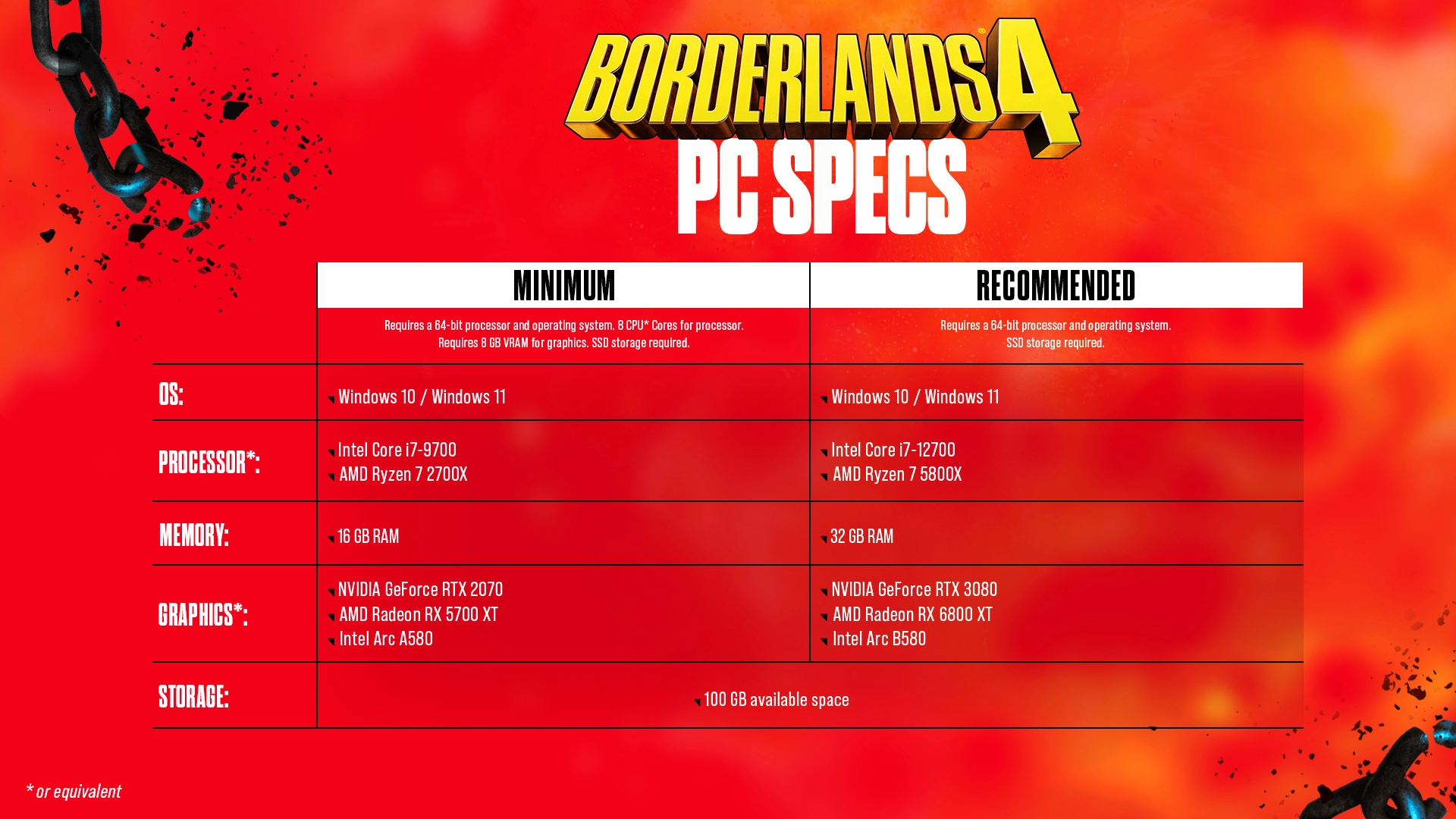
The table summarizes the exact components and requirements as listed by the studio. Storage needs and operating system support are included for both tiers.
PC graphics settings – full list
The PC version includes a granular settings menu. Below is the complete list of options the studio published, covering basic display behavior, upscaling, environment detail, and post-processing controls. Ultrawide monitors are supported for field of view adjustments.
Basic
- General:
- Display Mode: Fullscreen, Windowed Fullscreen, Windowed
- Resolution (Varies by setup)
- Display Stats: None, FPS, All
- Limit Frame Rate: Off, On
- Custom FPS Limit (Varies by setup)
Advanced
- General:
- Graphics Preset: Low, Medium, High, Very High, Badass
- Anti-Aliasing: Disabled, Enabled
- Upscaling Method: Disabled, DLSS, FSR, TSR, XeSS
- Upscaling Quality: Ultra Performance, Performance, Balanced, Quality, Full Resolution
- Spatial Upscaling Quality: Performance, Balanced, Quality, Ultra Quality, Disabled
- Scene Capture Quality: Low, High, Full Resolution
- Frame Generation: Off, On
- NVIDIA Reflex Low Latency: Off, On, Boost
- HLOD Loading Range: Near, Medium, Far
- Geometry Quality: Low, Medium, High
- Texture Quality: Low, Medium, High, Very High
- Textures Streaming Speed: Medium, High, Very High
- Anisotropic Filtering Quality: Off, x1, x2, x4, x8, x16
- Foliage Density: Off, Very Low, Low, Medium, High, Very High
- Volumetric Fog: Low, Medium, High, Very High
- Volumetric Cloud: Low, Medium, High, Very High
- Shadow Quality: Low, Medium, High, Very High
- Directional Shadow Quality: Low, Medium, High, Very High
- Volumetric Cloud Shadows: Disabled, Enabled
- Lighting Quality: Low, Medium, High, Very High
- Reflections Quality: Low, Medium, High, Very High
- Shading Quality: Low, Medium, High
- Post-Process Quality: Low, Medium, High, Very High
- Motion Blur Amount
- Motion Blur Quality: Off, Low, Medium, High, Very High
Accessibility features – menu overview
The game includes a dedicated Accessibility menu. The options below cover subtitles, color presets for various color vision deficiencies, audio adjustments, and movement modifiers.
Basic
- Subtitles:
- Show Subtitles: Off, On
- Subtitle Text Size: Normal, Large, Extra Large
- Force Bold Text: Off, On
- Subtitle Color: White, Orange, Yellow, Pink, Light Blue, Green
- Subtitle Background: Off, On
- Subtitle Background Opacity: Off, Low, Medium, High, Full
- Toggle Speaker Identify: Off, On
- Speaker Identify Color: White, Orange, Yellow, Pink, Light Blue, Green
Audio & Visuals
- General:
- Menu Text Scaling: Off, Size 1, Size 2
- Damage Numbers: Off, On
- Force Mono (converts all game audio to mono): Off, On
- Mix Preset: Bass Reduction (Vestibular), Ear Fatigue Reduction, Hyperacusis Relief, Misophonia Relief, Sensory Comfort, Tinnitus Relief General, Tinnitus Relief Targeted, 80 Hz Notch
- Color Preset:
- Default
- Green/Red (recommended for those that experience Deuteranopia)
- Red/Green (recommended for those that experience Protanopia)
- Blue/Yellow (may help those that experience Tritanopia)
Gameplay
- General:
- Map Zoom Speed (Adjust how quickly the Map zooms in and out)
- Enable Vibration: Off, On
- Enable Adaptive Triggers: Off, On
- Screen Shake Intensity
- Toggle Crouch: Off, On
- Toggle Sprint: Off, On
- Enable Dash: Off, On
- Camera Head-bob
- Grapple View Tilt: Off, On
- Mantle with Forward: Off, On
Additional options – difficulty, saving, remapping, audio
Beyond the Accessibility menu, the studio outlines core systems that affect challenge, persistence, input, and sound. Difficulty settings scale per player in co-op parties.
- Difficulty (set when creating a new character; scales individually in co-op):
- Easy: “Looking for a story.” Reduced damage, Elemental Affinities matter less
- Normal: “Looking for a balanced experience.”
- Hard: “Looking for a challenge.” Increased damage taken, increased Cash, Loot Quality is increased, Elemental Affinities matter more
- Main Volume Controls:
- Master Volume
- Music Volume
- Sound Effects Volume
- Dialog Volume
- Audio Preset: Hi Fi, Balanced, Compressed, Quiet Time, Colorful Realism, Voice Focus
- Menu Music Volume
- Game Music Volume
- Cinematic Music Volume
- Boss Music Trim
- Player Weapons Trim
- Explosions Trim
- User Interface Trim
- Outgoing Damage Trim
- Incoming Damage Trim
- Player Voice Volume
- Player Efforts Trim
- Player Callouts Trim
- Player Idle Lines Trim
- Combat Voice Volume
- Claptrap?
Final takeaway – what this means for PC players
The headline requirements are clear: a 64-bit OS, an SSD, and 100 GB of space are mandatory. Minimum targets 1080p-30 on Low with 8 CPU cores and 8 GB VRAM; recommended aims at 1440p-60 on Medium. With a deep slate of graphics and accessibility options, players can tailor performance, visuals, and comfort settings to their hardware and preferences.
- Display Mode: Fullscreen, Windowed Fullscreen, Windowed
- Resolution (Varies by setup)
- Display Stats: None, FPS, All
- Limit Frame Rate: Off, On
- Custom FPS Limit (Varies by setup)
Advanced
- General:
- Graphics Preset: Low, Medium, High, Very High, Badass
- Anti-Aliasing: Disabled, Enabled
- Upscaling Method: Disabled, DLSS, FSR, TSR, XeSS
- Upscaling Quality: Ultra Performance, Performance, Balanced, Quality, Full Resolution
- Spatial Upscaling Quality: Performance, Balanced, Quality, Ultra Quality, Disabled
- Scene Capture Quality: Low, High, Full Resolution
- Frame Generation: Off, On
- NVIDIA Reflex Low Latency: Off, On, Boost
- HLOD Loading Range: Near, Medium, Far
- Geometry Quality: Low, Medium, High
- Texture Quality: Low, Medium, High, Very High
- Textures Streaming Speed: Medium, High, Very High
- Anisotropic Filtering Quality: Off, x1, x2, x4, x8, x16
- Foliage Density: Off, Very Low, Low, Medium, High, Very High
- Volumetric Fog: Low, Medium, High, Very High
- Volumetric Cloud: Low, Medium, High, Very High
- Shadow Quality: Low, Medium, High, Very High
- Directional Shadow Quality: Low, Medium, High, Very High
- Volumetric Cloud Shadows: Disabled, Enabled
- Lighting Quality: Low, Medium, High, Very High
- Reflections Quality: Low, Medium, High, Very High
- Shading Quality: Low, Medium, High
- Post-Process Quality: Low, Medium, High, Very High
- Motion Blur Amount
- Motion Blur Quality: Off, Low, Medium, High, Very High
Accessibility features – menu overview
The game includes a dedicated Accessibility menu. The options below cover subtitles, color presets for various color vision deficiencies, audio adjustments, and movement modifiers.
Basic
- Subtitles:
- Show Subtitles: Off, On
- Subtitle Text Size: Normal, Large, Extra Large
- Force Bold Text: Off, On
- Subtitle Color: White, Orange, Yellow, Pink, Light Blue, Green
- Subtitle Background: Off, On
- Subtitle Background Opacity: Off, Low, Medium, High, Full
- Toggle Speaker Identify: Off, On
- Speaker Identify Color: White, Orange, Yellow, Pink, Light Blue, Green
Audio & Visuals
- General:
- Menu Text Scaling: Off, Size 1, Size 2
- Damage Numbers: Off, On
- Force Mono (converts all game audio to mono): Off, On
- Mix Preset: Bass Reduction (Vestibular), Ear Fatigue Reduction, Hyperacusis Relief, Misophonia Relief, Sensory Comfort, Tinnitus Relief General, Tinnitus Relief Targeted, 80 Hz Notch
- Color Preset:
- Default
- Green/Red (recommended for those that experience Deuteranopia)
- Red/Green (recommended for those that experience Protanopia)
- Blue/Yellow (may help those that experience Tritanopia)
Gameplay
- General:
- Map Zoom Speed (Adjust how quickly the Map zooms in and out)
- Enable Vibration: Off, On
- Enable Adaptive Triggers: Off, On
- Screen Shake Intensity
- Toggle Crouch: Off, On
- Toggle Sprint: Off, On
- Enable Dash: Off, On
- Camera Head-bob
- Grapple View Tilt: Off, On
- Mantle with Forward: Off, On
Additional options – difficulty, saving, remapping, audio
Beyond the Accessibility menu, the studio outlines core systems that affect challenge, persistence, input, and sound. Difficulty settings scale per player in co-op parties.
- Difficulty (set when creating a new character; scales individually in co-op):
- Easy: “Looking for a story.” Reduced damage, Elemental Affinities matter less
- Normal: “Looking for a balanced experience.”
- Hard: “Looking for a challenge.” Increased damage taken, increased Cash, Loot Quality is increased, Elemental Affinities matter more
- Main Volume Controls:
- Master Volume
- Music Volume
- Sound Effects Volume
- Dialog Volume
- Audio Preset: Hi Fi, Balanced, Compressed, Quiet Time, Colorful Realism, Voice Focus
- Menu Music Volume
- Game Music Volume
- Cinematic Music Volume
- Boss Music Trim
- Player Weapons Trim
- Explosions Trim
- User Interface Trim
- Outgoing Damage Trim
- Incoming Damage Trim
- Player Voice Volume
- Player Efforts Trim
- Player Callouts Trim
- Player Idle Lines Trim
- Combat Voice Volume
- Claptrap?
Final takeaway – what this means for PC players
The headline requirements are clear: a 64-bit OS, an SSD, and 100 GB of space are mandatory. Minimum targets 1080p-30 on Low with 8 CPU cores and 8 GB VRAM; recommended aims at 1440p-60 on Medium. With a deep slate of graphics and accessibility options, players can tailor performance, visuals, and comfort settings to their hardware and preferences.
- Custom FPS Limit (Varies by setup)
- General:
- Graphics Preset: Low, Medium, High, Very High, Badass
- Anti-Aliasing: Disabled, Enabled
- Upscaling Method: Disabled, DLSS, FSR, TSR, XeSS
- Upscaling Quality: Ultra Performance, Performance, Balanced, Quality, Full Resolution
- Spatial Upscaling Quality: Performance, Balanced, Quality, Ultra Quality, Disabled
- Scene Capture Quality: Low, High, Full Resolution
- Frame Generation: Off, On
- NVIDIA Reflex Low Latency: Off, On, Boost
- HLOD Loading Range: Near, Medium, Far
- Geometry Quality: Low, Medium, High
- Texture Quality: Low, Medium, High, Very High
- Textures Streaming Speed: Medium, High, Very High
- Anisotropic Filtering Quality: Off, x1, x2, x4, x8, x16
- Foliage Density: Off, Very Low, Low, Medium, High, Very High
- Volumetric Fog: Low, Medium, High, Very High
- Volumetric Cloud: Low, Medium, High, Very High
- Shadow Quality: Low, Medium, High, Very High
- Directional Shadow Quality: Low, Medium, High, Very High
- Volumetric Cloud Shadows: Disabled, Enabled
- Lighting Quality: Low, Medium, High, Very High
- Reflections Quality: Low, Medium, High, Very High
- Shading Quality: Low, Medium, High
- Post-Process Quality: Low, Medium, High, Very High
- Motion Blur Amount
- Motion Blur Quality: Off, Low, Medium, High, Very High
Accessibility features – menu overview
The game includes a dedicated Accessibility menu. The options below cover subtitles, color presets for various color vision deficiencies, audio adjustments, and movement modifiers.
Basic
- Subtitles:
- Show Subtitles: Off, On
- Subtitle Text Size: Normal, Large, Extra Large
- Force Bold Text: Off, On
- Subtitle Color: White, Orange, Yellow, Pink, Light Blue, Green
- Subtitle Background: Off, On
- Subtitle Background Opacity: Off, Low, Medium, High, Full
- Toggle Speaker Identify: Off, On
- Speaker Identify Color: White, Orange, Yellow, Pink, Light Blue, Green
Audio & Visuals
- General:
- Menu Text Scaling: Off, Size 1, Size 2
- Damage Numbers: Off, On
- Force Mono (converts all game audio to mono): Off, On
- Mix Preset: Bass Reduction (Vestibular), Ear Fatigue Reduction, Hyperacusis Relief, Misophonia Relief, Sensory Comfort, Tinnitus Relief General, Tinnitus Relief Targeted, 80 Hz Notch
- Color Preset:
- Default
- Green/Red (recommended for those that experience Deuteranopia)
- Red/Green (recommended for those that experience Protanopia)
- Blue/Yellow (may help those that experience Tritanopia)
Gameplay
- General:
- Map Zoom Speed (Adjust how quickly the Map zooms in and out)
- Enable Vibration: Off, On
- Enable Adaptive Triggers: Off, On
- Screen Shake Intensity
- Toggle Crouch: Off, On
- Toggle Sprint: Off, On
- Enable Dash: Off, On
- Camera Head-bob
- Grapple View Tilt: Off, On
- Mantle with Forward: Off, On
Additional options – difficulty, saving, remapping, audio
Beyond the Accessibility menu, the studio outlines core systems that affect challenge, persistence, input, and sound. Difficulty settings scale per player in co-op parties.
- Difficulty (set when creating a new character; scales individually in co-op):
- Easy: “Looking for a story.” Reduced damage, Elemental Affinities matter less
- Normal: “Looking for a balanced experience.”
- Hard: “Looking for a challenge.” Increased damage taken, increased Cash, Loot Quality is increased, Elemental Affinities matter more
- Main Volume Controls:
- Master Volume
- Music Volume
- Sound Effects Volume
- Dialog Volume
- Audio Preset: Hi Fi, Balanced, Compressed, Quiet Time, Colorful Realism, Voice Focus
- Menu Music Volume
- Game Music Volume
- Cinematic Music Volume
- Boss Music Trim
- Player Weapons Trim
- Explosions Trim
- User Interface Trim
- Outgoing Damage Trim
- Incoming Damage Trim
- Player Voice Volume
- Player Efforts Trim
- Player Callouts Trim
- Player Idle Lines Trim
- Combat Voice Volume
- Claptrap?
Read also our article: Borderlands 4’s SHiFT explained: crossplay, friends and matchmaking
Final takeaway – what this means for PC players
The headline requirements are clear: a 64-bit OS, an SSD, and 100 GB of space are mandatory. Minimum targets 1080p-30 on Low with 8 CPU cores and 8 GB VRAM; recommended aims at 1440p-60 on Medium. With a deep slate of graphics and accessibility options, players can tailor performance, visuals, and comfort settings to their hardware and preferences.
- Graphics Preset: Low, Medium, High, Very High, Badass
- Anti-Aliasing: Disabled, Enabled
- Upscaling Method: Disabled, DLSS, FSR, TSR, XeSS
- Upscaling Quality: Ultra Performance, Performance, Balanced, Quality, Full Resolution
- Spatial Upscaling Quality: Performance, Balanced, Quality, Ultra Quality, Disabled
- Scene Capture Quality: Low, High, Full Resolution
- Frame Generation: Off, On
- NVIDIA Reflex Low Latency: Off, On, Boost
- HLOD Loading Range: Near, Medium, Far
- Geometry Quality: Low, Medium, High
- Texture Quality: Low, Medium, High, Very High
- Textures Streaming Speed: Medium, High, Very High
- Anisotropic Filtering Quality: Off, x1, x2, x4, x8, x16
- Foliage Density: Off, Very Low, Low, Medium, High, Very High
- Volumetric Fog: Low, Medium, High, Very High
- Volumetric Cloud: Low, Medium, High, Very High
- Shadow Quality: Low, Medium, High, Very High
- Directional Shadow Quality: Low, Medium, High, Very High
- Volumetric Cloud Shadows: Disabled, Enabled
- Lighting Quality: Low, Medium, High, Very High
- Reflections Quality: Low, Medium, High, Very High
- Shading Quality: Low, Medium, High
- Post-Process Quality: Low, Medium, High, Very High
- Motion Blur Amount
- Motion Blur Quality: Off, Low, Medium, High, Very High
- Subtitles:
- Show Subtitles: Off, On
- Subtitle Text Size: Normal, Large, Extra Large
- Force Bold Text: Off, On
- Subtitle Color: White, Orange, Yellow, Pink, Light Blue, Green
- Subtitle Background: Off, On
- Subtitle Background Opacity: Off, Low, Medium, High, Full
- Toggle Speaker Identify: Off, On
- Speaker Identify Color: White, Orange, Yellow, Pink, Light Blue, Green
Audio & Visuals
- General:
- Menu Text Scaling: Off, Size 1, Size 2
- Damage Numbers: Off, On
- Force Mono (converts all game audio to mono): Off, On
- Mix Preset: Bass Reduction (Vestibular), Ear Fatigue Reduction, Hyperacusis Relief, Misophonia Relief, Sensory Comfort, Tinnitus Relief General, Tinnitus Relief Targeted, 80 Hz Notch
- Color Preset:
- Default
- Green/Red (recommended for those that experience Deuteranopia)
- Red/Green (recommended for those that experience Protanopia)
- Blue/Yellow (may help those that experience Tritanopia)
Gameplay
- General:
- Map Zoom Speed (Adjust how quickly the Map zooms in and out)
- Enable Vibration: Off, On
- Enable Adaptive Triggers: Off, On
- Screen Shake Intensity
- Toggle Crouch: Off, On
- Toggle Sprint: Off, On
- Enable Dash: Off, On
- Camera Head-bob
- Grapple View Tilt: Off, On
- Mantle with Forward: Off, On
Additional options – difficulty, saving, remapping, audio
Beyond the Accessibility menu, the studio outlines core systems that affect challenge, persistence, input, and sound. Difficulty settings scale per player in co-op parties.
- Difficulty (set when creating a new character; scales individually in co-op):
- Easy: “Looking for a story.” Reduced damage, Elemental Affinities matter less
- Normal: “Looking for a balanced experience.”
- Hard: “Looking for a challenge.” Increased damage taken, increased Cash, Loot Quality is increased, Elemental Affinities matter more
- Main Volume Controls:
- Master Volume
- Music Volume
- Sound Effects Volume
- Dialog Volume
- Audio Preset: Hi Fi, Balanced, Compressed, Quiet Time, Colorful Realism, Voice Focus
- Menu Music Volume
- Game Music Volume
- Cinematic Music Volume
- Boss Music Trim
- Player Weapons Trim
- Explosions Trim
- User Interface Trim
- Outgoing Damage Trim
- Incoming Damage Trim
- Player Voice Volume
- Player Efforts Trim
- Player Callouts Trim
- Player Idle Lines Trim
- Combat Voice Volume
- Claptrap?
Final takeaway – what this means for PC players
The headline requirements are clear: a 64-bit OS, an SSD, and 100 GB of space are mandatory. Minimum targets 1080p-30 on Low with 8 CPU cores and 8 GB VRAM; recommended aims at 1440p-60 on Medium. With a deep slate of graphics and accessibility options, players can tailor performance, visuals, and comfort settings to their hardware and preferences.
- Show Subtitles: Off, On
- Subtitle Text Size: Normal, Large, Extra Large
- Force Bold Text: Off, On
- Subtitle Color: White, Orange, Yellow, Pink, Light Blue, Green
- Subtitle Background: Off, On
- Subtitle Background Opacity: Off, Low, Medium, High, Full
- Toggle Speaker Identify: Off, On
- Speaker Identify Color: White, Orange, Yellow, Pink, Light Blue, Green
- General:
- Menu Text Scaling: Off, Size 1, Size 2
- Damage Numbers: Off, On
- Force Mono (converts all game audio to mono): Off, On
- Mix Preset: Bass Reduction (Vestibular), Ear Fatigue Reduction, Hyperacusis Relief, Misophonia Relief, Sensory Comfort, Tinnitus Relief General, Tinnitus Relief Targeted, 80 Hz Notch
- Color Preset:
- Default
- Green/Red (recommended for those that experience Deuteranopia)
- Red/Green (recommended for those that experience Protanopia)
- Blue/Yellow (may help those that experience Tritanopia)
Gameplay
- General:
- Map Zoom Speed (Adjust how quickly the Map zooms in and out)
- Enable Vibration: Off, On
- Enable Adaptive Triggers: Off, On
- Screen Shake Intensity
- Toggle Crouch: Off, On
- Toggle Sprint: Off, On
- Enable Dash: Off, On
- Camera Head-bob
- Grapple View Tilt: Off, On
- Mantle with Forward: Off, On
Additional options – difficulty, saving, remapping, audio
Beyond the Accessibility menu, the studio outlines core systems that affect challenge, persistence, input, and sound. Difficulty settings scale per player in co-op parties.
- Difficulty (set when creating a new character; scales individually in co-op):
- Easy: “Looking for a story.” Reduced damage, Elemental Affinities matter less
- Normal: “Looking for a balanced experience.”
- Hard: “Looking for a challenge.” Increased damage taken, increased Cash, Loot Quality is increased, Elemental Affinities matter more
- Main Volume Controls:
- Master Volume
- Music Volume
- Sound Effects Volume
- Dialog Volume
- Audio Preset: Hi Fi, Balanced, Compressed, Quiet Time, Colorful Realism, Voice Focus
- Menu Music Volume
- Game Music Volume
- Cinematic Music Volume
- Boss Music Trim
- Player Weapons Trim
- Explosions Trim
- User Interface Trim
- Outgoing Damage Trim
- Incoming Damage Trim
- Player Voice Volume
- Player Efforts Trim
- Player Callouts Trim
- Player Idle Lines Trim
- Combat Voice Volume
- Claptrap?
Final takeaway – what this means for PC players
The headline requirements are clear: a 64-bit OS, an SSD, and 100 GB of space are mandatory. Minimum targets 1080p-30 on Low with 8 CPU cores and 8 GB VRAM; recommended aims at 1440p-60 on Medium. With a deep slate of graphics and accessibility options, players can tailor performance, visuals, and comfort settings to their hardware and preferences.
- Menu Text Scaling: Off, Size 1, Size 2
- Damage Numbers: Off, On
- Force Mono (converts all game audio to mono): Off, On
- Mix Preset: Bass Reduction (Vestibular), Ear Fatigue Reduction, Hyperacusis Relief, Misophonia Relief, Sensory Comfort, Tinnitus Relief General, Tinnitus Relief Targeted, 80 Hz Notch
- Color Preset:
- Default
- Green/Red (recommended for those that experience Deuteranopia)
- Red/Green (recommended for those that experience Protanopia)
- Blue/Yellow (may help those that experience Tritanopia)
Gameplay
- General:
- Map Zoom Speed (Adjust how quickly the Map zooms in and out)
- Enable Vibration: Off, On
- Enable Adaptive Triggers: Off, On
- Screen Shake Intensity
- Toggle Crouch: Off, On
- Toggle Sprint: Off, On
- Enable Dash: Off, On
- Camera Head-bob
- Grapple View Tilt: Off, On
- Mantle with Forward: Off, On
Additional options – difficulty, saving, remapping, audio
Beyond the Accessibility menu, the studio outlines core systems that affect challenge, persistence, input, and sound. Difficulty settings scale per player in co-op parties.
- Difficulty (set when creating a new character; scales individually in co-op):
- Easy: “Looking for a story.” Reduced damage, Elemental Affinities matter less
- Normal: “Looking for a balanced experience.”
- Hard: “Looking for a challenge.” Increased damage taken, increased Cash, Loot Quality is increased, Elemental Affinities matter more
- Main Volume Controls:
- Master Volume
- Music Volume
- Sound Effects Volume
- Dialog Volume
- Audio Preset: Hi Fi, Balanced, Compressed, Quiet Time, Colorful Realism, Voice Focus
- Menu Music Volume
- Game Music Volume
- Cinematic Music Volume
- Boss Music Trim
- Player Weapons Trim
- Explosions Trim
- User Interface Trim
- Outgoing Damage Trim
- Incoming Damage Trim
- Player Voice Volume
- Player Efforts Trim
- Player Callouts Trim
- Player Idle Lines Trim
- Combat Voice Volume
- Claptrap?
Final takeaway – what this means for PC players
The headline requirements are clear: a 64-bit OS, an SSD, and 100 GB of space are mandatory. Minimum targets 1080p-30 on Low with 8 CPU cores and 8 GB VRAM; recommended aims at 1440p-60 on Medium. With a deep slate of graphics and accessibility options, players can tailor performance, visuals, and comfort settings to their hardware and preferences.
- Default
- Green/Red (recommended for those that experience Deuteranopia)
- Red/Green (recommended for those that experience Protanopia)
- Blue/Yellow (may help those that experience Tritanopia)
- General:
- Map Zoom Speed (Adjust how quickly the Map zooms in and out)
- Enable Vibration: Off, On
- Enable Adaptive Triggers: Off, On
- Screen Shake Intensity
- Toggle Crouch: Off, On
- Toggle Sprint: Off, On
- Enable Dash: Off, On
- Camera Head-bob
- Grapple View Tilt: Off, On
- Mantle with Forward: Off, On
Additional options – difficulty, saving, remapping, audio
Beyond the Accessibility menu, the studio outlines core systems that affect challenge, persistence, input, and sound. Difficulty settings scale per player in co-op parties.
- Difficulty (set when creating a new character; scales individually in co-op):
- Easy: “Looking for a story.” Reduced damage, Elemental Affinities matter less
- Normal: “Looking for a balanced experience.”
- Hard: “Looking for a challenge.” Increased damage taken, increased Cash, Loot Quality is increased, Elemental Affinities matter more
- Main Volume Controls:
- Master Volume
- Music Volume
- Sound Effects Volume
- Dialog Volume
- Audio Preset: Hi Fi, Balanced, Compressed, Quiet Time, Colorful Realism, Voice Focus
- Menu Music Volume
- Game Music Volume
- Cinematic Music Volume
- Boss Music Trim
- Player Weapons Trim
- Explosions Trim
- User Interface Trim
- Outgoing Damage Trim
- Incoming Damage Trim
- Player Voice Volume
- Player Efforts Trim
- Player Callouts Trim
- Player Idle Lines Trim
- Combat Voice Volume
- Claptrap?
Final takeaway – what this means for PC players
The headline requirements are clear: a 64-bit OS, an SSD, and 100 GB of space are mandatory. Minimum targets 1080p-30 on Low with 8 CPU cores and 8 GB VRAM; recommended aims at 1440p-60 on Medium. With a deep slate of graphics and accessibility options, players can tailor performance, visuals, and comfort settings to their hardware and preferences.
- Map Zoom Speed (Adjust how quickly the Map zooms in and out)
- Enable Vibration: Off, On
- Enable Adaptive Triggers: Off, On
- Screen Shake Intensity
- Toggle Crouch: Off, On
- Toggle Sprint: Off, On
- Enable Dash: Off, On
- Camera Head-bob
- Grapple View Tilt: Off, On
- Mantle with Forward: Off, On
- Difficulty (set when creating a new character; scales individually in co-op):
- Easy: “Looking for a story.” Reduced damage, Elemental Affinities matter less
- Normal: “Looking for a balanced experience.”
- Hard: “Looking for a challenge.” Increased damage taken, increased Cash, Loot Quality is increased, Elemental Affinities matter more
- Main Volume Controls:
- Master Volume
- Music Volume
- Sound Effects Volume
- Dialog Volume
- Audio Preset: Hi Fi, Balanced, Compressed, Quiet Time, Colorful Realism, Voice Focus
- Menu Music Volume
- Game Music Volume
- Cinematic Music Volume
- Boss Music Trim
- Player Weapons Trim
- Explosions Trim
- User Interface Trim
- Outgoing Damage Trim
- Incoming Damage Trim
- Player Voice Volume
- Player Efforts Trim
- Player Callouts Trim
- Player Idle Lines Trim
- Combat Voice Volume
- Claptrap?
Final takeaway – what this means for PC players
The headline requirements are clear: a 64-bit OS, an SSD, and 100 GB of space are mandatory. Minimum targets 1080p-30 on Low with 8 CPU cores and 8 GB VRAM; recommended aims at 1440p-60 on Medium. With a deep slate of graphics and accessibility options, players can tailor performance, visuals, and comfort settings to their hardware and preferences.
- Easy: “Looking for a story.” Reduced damage, Elemental Affinities matter less
- Normal: “Looking for a balanced experience.”
- Hard: “Looking for a challenge.” Increased damage taken, increased Cash, Loot Quality is increased, Elemental Affinities matter more
- Main Volume Controls:
- Master Volume
- Music Volume
- Sound Effects Volume
- Dialog Volume
- Audio Preset: Hi Fi, Balanced, Compressed, Quiet Time, Colorful Realism, Voice Focus
- Menu Music Volume
- Game Music Volume
- Cinematic Music Volume
- Boss Music Trim
- Player Weapons Trim
- Explosions Trim
- User Interface Trim
- Outgoing Damage Trim
- Incoming Damage Trim
- Player Voice Volume
- Player Efforts Trim
- Player Callouts Trim
- Player Idle Lines Trim
- Combat Voice Volume
- Claptrap?
Final takeaway – what this means for PC players
The headline requirements are clear: a 64-bit OS, an SSD, and 100 GB of space are mandatory. Minimum targets 1080p-30 on Low with 8 CPU cores and 8 GB VRAM; recommended aims at 1440p-60 on Medium. With a deep slate of graphics and accessibility options, players can tailor performance, visuals, and comfort settings to their hardware and preferences.
- Master Volume
- Music Volume
- Sound Effects Volume
- Dialog Volume
- Audio Preset: Hi Fi, Balanced, Compressed, Quiet Time, Colorful Realism, Voice Focus
- Menu Music Volume
- Game Music Volume
- Cinematic Music Volume
- Boss Music Trim
- Player Weapons Trim
- Explosions Trim
- User Interface Trim
- Outgoing Damage Trim
- Incoming Damage Trim
- Player Voice Volume
- Player Efforts Trim
- Player Callouts Trim
- Player Idle Lines Trim
- Combat Voice Volume
- Claptrap?
Category

Share the news


Meet the Author


Article:
Read all

Solid Snake joins Rainbow Six Siege on March 3 with intel‑driven tools and scavenging gameplay. A few weeks later, a limited‑time 4v4 infiltration mode arrives alongside map and balance updates.
 February 15, 2026
 3
3
Season 1 opens the first chapter with Domina, Emre, Mizuki, Anran, and Jetpack Cat, plus the Conquest meta race between Overwatch and Talon. The world will update in real time as the story unfolds.
February 14, 2026
3
Kratos’ Spartan youth becomes playable in God of War Sons of Sparta – a canon, pixel‑art 2D prequel on PS5 with customizable spear‑and‑shield combat, Gifts of Olympus, and returning voice talent.
February 13, 2026
5
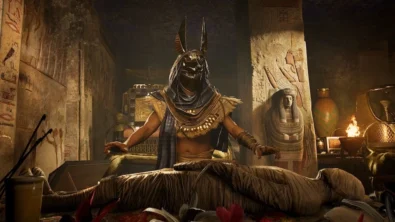
Ancient embalming, step by step – a new museum installation built on Assassin’s Creed Origins’ Discovery Tour lets visitors explore mummification interactively at Musée de l’Homme, open November 2025-May 2026.
February 13, 2026
6
Read also
Solid Snake joins Rainbow Six Siege on March 3 with intel‑driven tools and scavenging gameplay. A few weeks later, a limited‑time 4v4 infiltration mode arrives alongside map and balance updates.
February 15, 2026
3
Kratos’ Spartan youth becomes playable in God of War Sons of Sparta – a canon, pixel‑art 2D prequel on PS5 with customizable spear‑and‑shield combat, Gifts of Olympus, and returning voice talent.
February 13, 2026
5
Ancient embalming, step by step – a new museum installation built on Assassin’s Creed Origins’ Discovery Tour lets visitors explore mummification interactively at Musée de l’Homme, open November 2025-May 2026.
February 13, 2026
6
From training mode to centre stage: Rainbow Six Siege’s debut 1v1 circuit lands at the Six Invitational in Paris. Four regions, more than 3,200 entrants, semifinals Feb 14 and final Feb 15 for 5,000 US dollars.
February 13, 2026
5
Blizzard links its 2026 milestones with a cross‑franchise Showcase and confirms BlizzCon’s return later this year – with more announcements and “surprises” still queued, says president Johanna Faries.
February 13, 2026
5

High On Life 2 launches with day-one Game Pass Ultimate support, while Narrative Director Alec Robbins explains how the team crafts jokes with players—shaping character-driven, reactive comedy.
February 13, 2026
6
From a Star Trek survival-strategy take to stealth with Styx, eerie Backrooms horror, and management sims, Xbox’s February 17-20 slate packs 14 launches with Series X|S optimizations and cross-platform perks.
February 13, 2026
7
First full gameplay for CONTROL Resonant runs on PS5 Pro, spotlighting Dylan Faden in a reality-bending Manhattan with vast zones and Gravity Anomalies. Launch set for 2026 across console and PC ecosystems.
February 13, 2026
4
Borderlands 4 sets a co-op goal for this weekend: hit 500,000 successful teammate revives between February 12-15 to unlock a universal cosmetic skin. A minor update adds three Weekly Big Encore boss fights to raise the stakes.
February 13, 2026
6
A milestone collection bundles five classic Rayman versions, a first-ever playable SNES prototype, reimagined music, modern assist options, and over 50 minutes of developer interviews.
February 13, 2026
6

Співпраця
Співпраця - текст
TopGame Newsletter!
Unlock exclusive gaming deals, fresh guides, and insider picks — straight to your inbox. No spam, just real content for real players.
