


Popular articles



Xbox Ally essentials: from Game Bar to Gaming Copilot
Table of Content

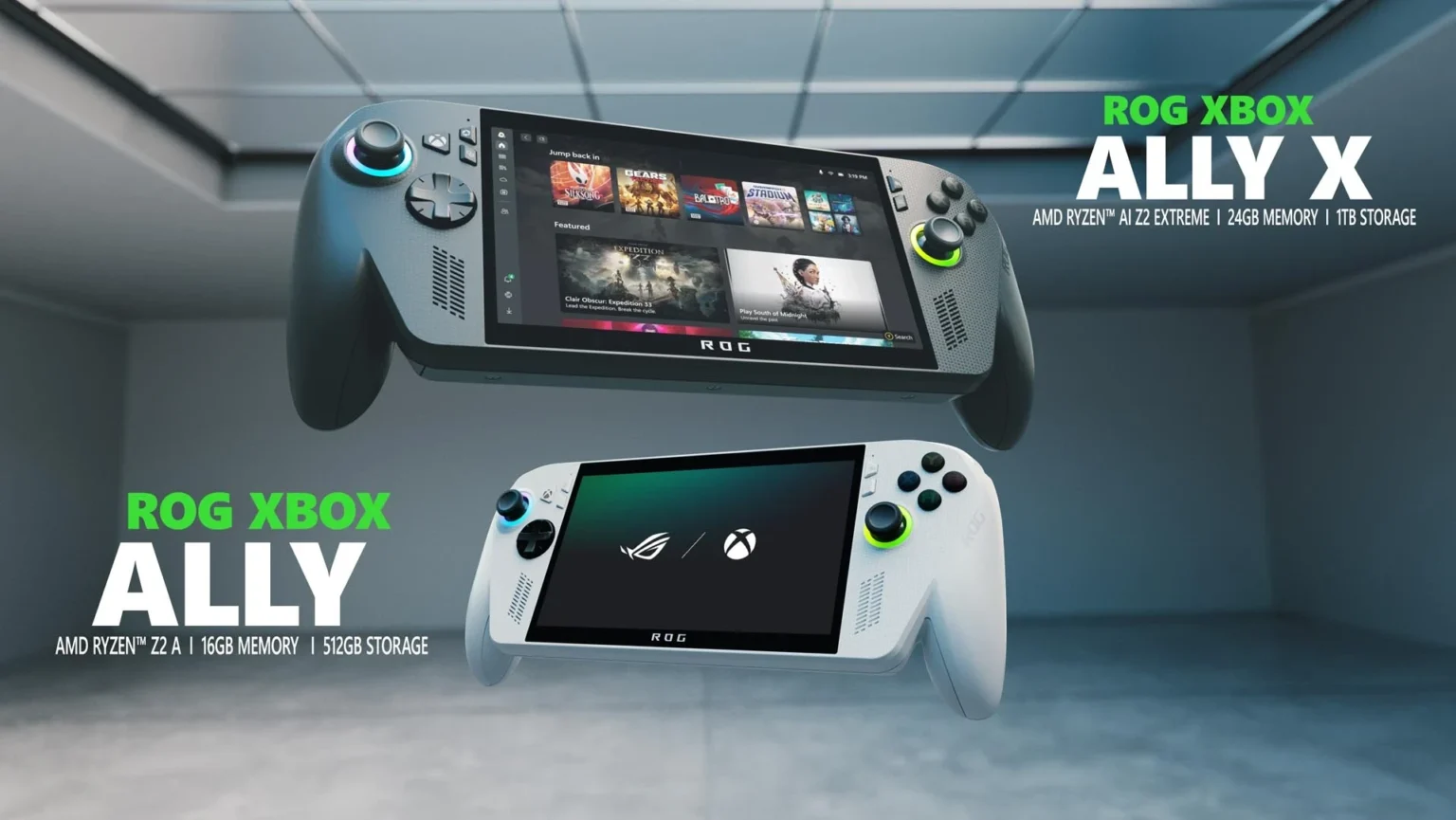
Microsoft has refreshed its official onboarding for ROG Xbox Ally and Xbox Ally X, focusing on practical steps to streamline setup and day‑to‑day play. The update consolidates navigation tips for the Xbox Full Screen experience, brings ASUS Command Center into the Game Bar, and explains how to hook in PC storefronts alongside Game Pass and Xbox Cloud Gaming. It also highlights the handheld’s offline behavior and accessibility controls. In addition, Microsoft recaps November 2025 improvements, including Default Game Profiles (Preview) and Game Save Sync Indicators.
Setup and navigation in Xbox Full Screen
After initial setup – including the fingerprint reader for quick unlock – the device boots into the Xbox Full Screen experience. Players can move through menus using the d‑pad, joysticks, shoulder and face buttons, or the touchscreen. Game Bar is accessible by pressing the Xbox button and tapping the right bumper, or by swiping in from the left edge. A Task Switcher is available via a long press of the Xbox button or by swiping up from the bottom for fast app swapping.
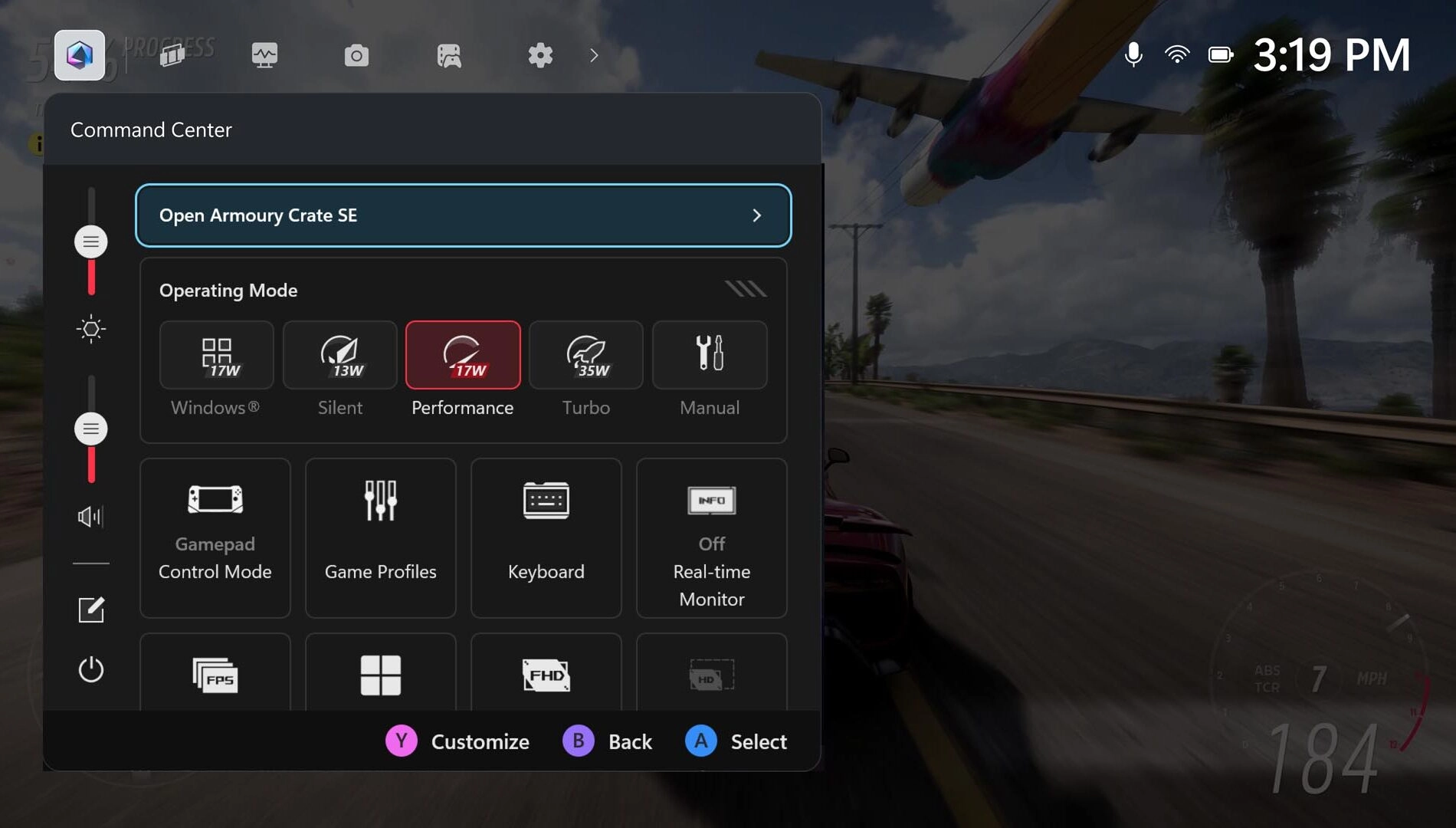
ASUS Command Center is integrated into Game Bar, providing quick access to power, performance and input options. The full Armoury Crate SE suite can be launched from this overlay for deeper customization. A short overview video is available:
Gaming Copilot (Beta)
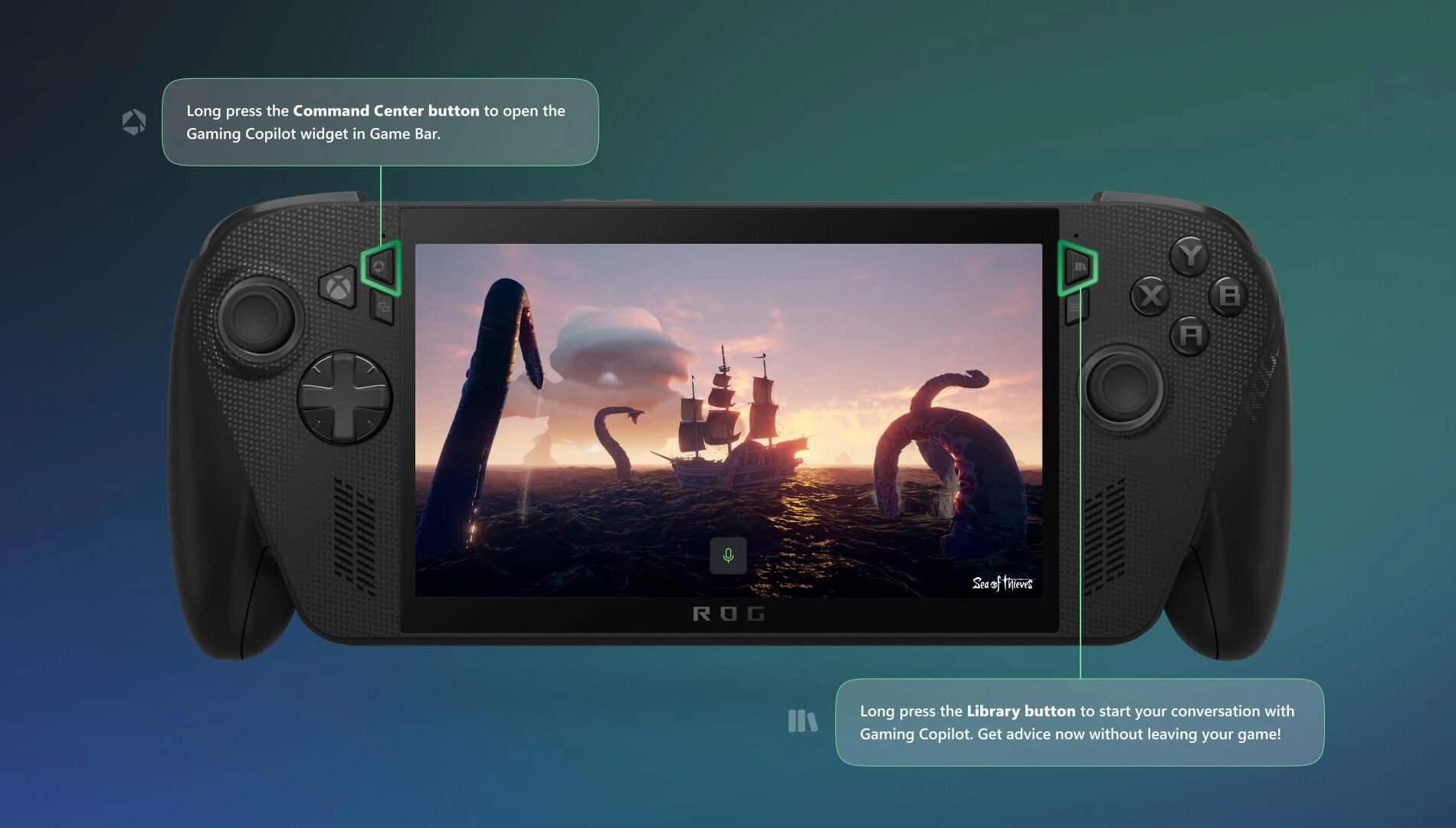
Gaming Copilot is available on Xbox Ally as a beta feature. It offers contextual recommendations, tips and insights without leaving your game. To start, long‑press the Command Center button to open the Gaming Copilot widget in Game Bar and complete onboarding. After setup, long‑press the Library button and release to open a conversation with Gaming Copilot for quick checks like achievements or strategy prompts.
Your library, PC storefronts and the cloud
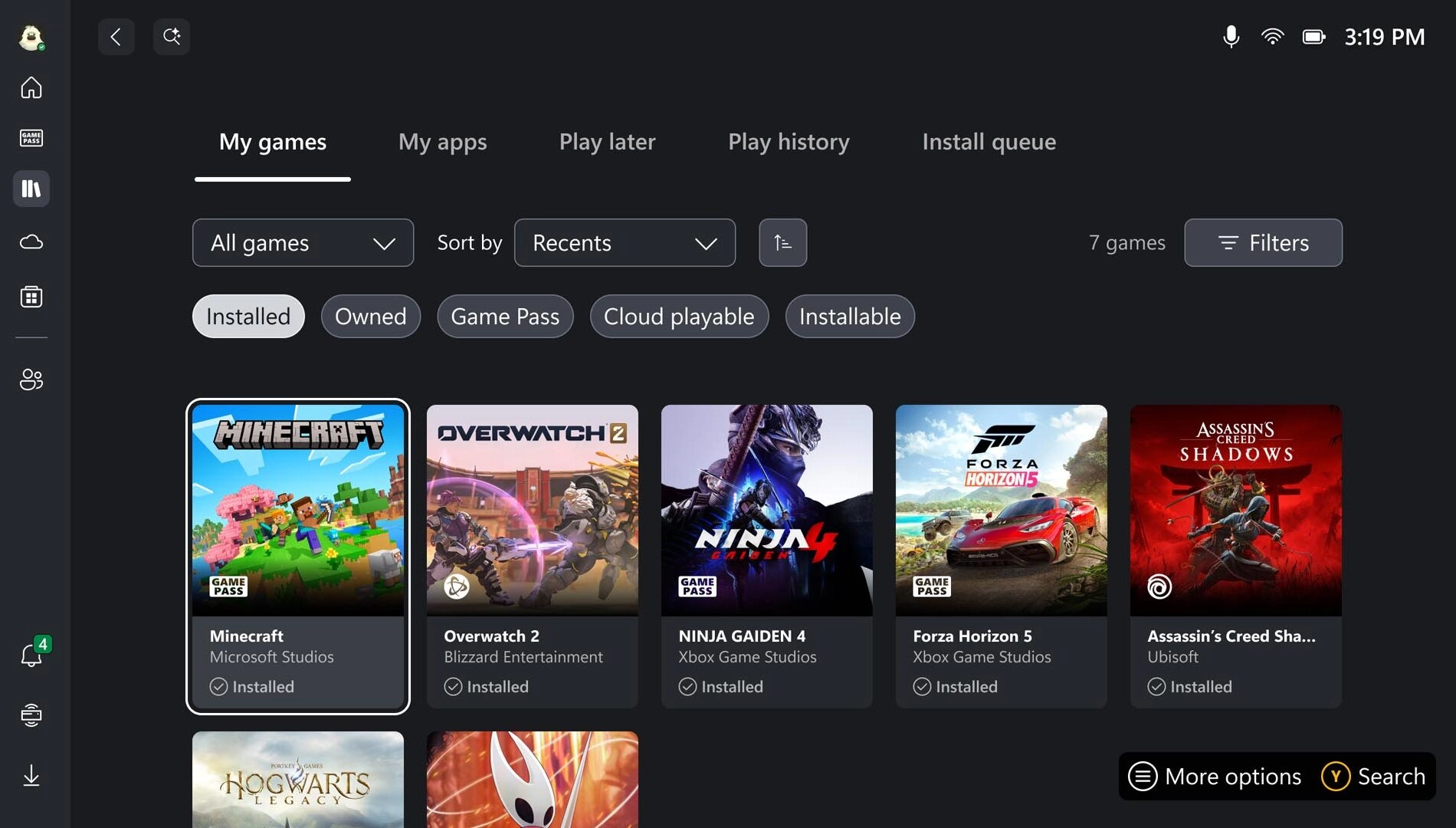
The dedicated Library button above the right thumbstick opens your collection – owned titles, Game Pass content and games available through Xbox Cloud Gaming. Multiple filters can be selected at once; for example, Owned and Installable to surface games ready to run natively on the handheld. The Store is available from the left rail.
- Aggregated gaming library – Add titles from leading PC storefronts so everything shows in one place. Open Library → My Apps, then choose the storefront to install.
- Missing a launcher? Open Edge in My Apps, visit the storefront website and download the installer.
Offline play – what to check before you go
Most single‑player titles run offline on the handheld. To prepare, test your games without a connection, download any updates or DLC in advance, and confirm you are signed in. When flying, enable airplane mode to reduce interruptions and conserve battery.
Accessibility and input options
Xbox Ally and Ally X carry over visual, cognitive and sensory accessibility features familiar from Xbox consoles and Windows 11 PCs. Go to Profile & Settings → Settings → Accessibility for system‑level options. Input settings – on‑screen keyboard, input customizations and button remapping for the handheld – are located in Armoury Crate SE.
Read also our article: CD Projekt and TRIGGER reteam for Cyberpunk: Edgerunners 2 on Netflix
External controllers can be paired over Bluetooth. Turn on the controller, hold Pair, then confirm the connect notification. If needed, open Game Bar → Settings → Bluetooth → Manage devices → Add device → Bluetooth and follow the prompts.
Docking and visual customization
The handheld supports USB‑C output to a monitor or TV for larger‑screen play. For best results, set display mode to Second Screen Only so resolution and refresh rate match the external display. The console’s joystick ring lights are adjustable in Armoury Crate SE under Lighting – choose pulsing behavior or disable lighting entirely for dark environments.
Recent improvements and update paths
Microsoft notes November 2025 enhancements to the ROG Xbox Ally experience:
- Default Game Profiles (Preview) – automatically balance frame rate (FPS) and power consumption for 40 supported games.
- Game Save Sync Indicators – real‑time confirmation that progress has uploaded to the cloud.
- Additional changes aimed at a smoother, faster and more reliable experience.
To keep software current:
- Windows OS Update – Open Game Bar → Settings Widget → More Settings → Open Windows Settings → Windows Update, then install all updates and restart if prompted.
- Armoury Crate SE – Open Command Center → Open Armoury Crate SE → Update Center → Check for Updates → Update All.
Bottom line – why this matters
The updated guide centers on practical control, quick customization and predictable performance across handheld and docked play. With Game Bar shortcuts, Command Center in‑line, Gaming Copilot (Beta) and clear update paths, Xbox Ally owners can streamline setup and keep games running consistently both online and off.
Category
Share the news


Meet the Author


Article:
Read all


Solid Snake joins Rainbow Six Siege on March 3 with intel‑driven tools and scavenging gameplay. A few weeks later, a limited‑time 4v4 infiltration mode arrives alongside map and balance updates.
 February 15, 2026
 3
3
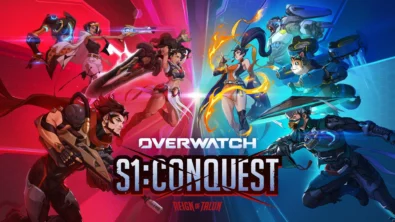
Season 1 opens the first chapter with Domina, Emre, Mizuki, Anran, and Jetpack Cat, plus the Conquest meta race between Overwatch and Talon. The world will update in real time as the story unfolds.
February 14, 2026
3
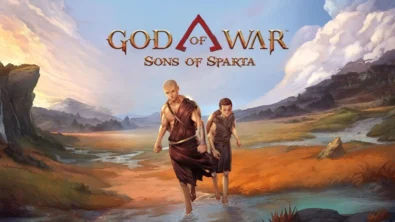
Kratos’ Spartan youth becomes playable in God of War Sons of Sparta – a canon, pixel‑art 2D prequel on PS5 with customizable spear‑and‑shield combat, Gifts of Olympus, and returning voice talent.
February 13, 2026
5

Ancient embalming, step by step – a new museum installation built on Assassin’s Creed Origins’ Discovery Tour lets visitors explore mummification interactively at Musée de l’Homme, open November 2025-May 2026.
February 13, 2026
6
Read also
Solid Snake joins Rainbow Six Siege on March 3 with intel‑driven tools and scavenging gameplay. A few weeks later, a limited‑time 4v4 infiltration mode arrives alongside map and balance updates.
February 15, 2026
3
Kratos’ Spartan youth becomes playable in God of War Sons of Sparta – a canon, pixel‑art 2D prequel on PS5 with customizable spear‑and‑shield combat, Gifts of Olympus, and returning voice talent.
February 13, 2026
5
Ancient embalming, step by step – a new museum installation built on Assassin’s Creed Origins’ Discovery Tour lets visitors explore mummification interactively at Musée de l’Homme, open November 2025-May 2026.
February 13, 2026
6
From training mode to centre stage: Rainbow Six Siege’s debut 1v1 circuit lands at the Six Invitational in Paris. Four regions, more than 3,200 entrants, semifinals Feb 14 and final Feb 15 for 5,000 US dollars.
February 13, 2026
5
Blizzard links its 2026 milestones with a cross‑franchise Showcase and confirms BlizzCon’s return later this year – with more announcements and “surprises” still queued, says president Johanna Faries.
February 13, 2026
5

High On Life 2 launches with day-one Game Pass Ultimate support, while Narrative Director Alec Robbins explains how the team crafts jokes with players—shaping character-driven, reactive comedy.
February 13, 2026
6
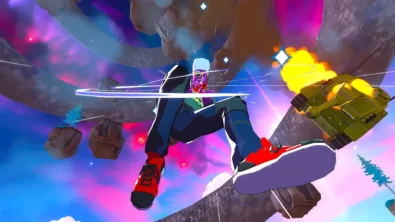
From a Star Trek survival-strategy take to stealth with Styx, eerie Backrooms horror, and management sims, Xbox’s February 17-20 slate packs 14 launches with Series X|S optimizations and cross-platform perks.
February 13, 2026
7

First full gameplay for CONTROL Resonant runs on PS5 Pro, spotlighting Dylan Faden in a reality-bending Manhattan with vast zones and Gravity Anomalies. Launch set for 2026 across console and PC ecosystems.
February 13, 2026
4
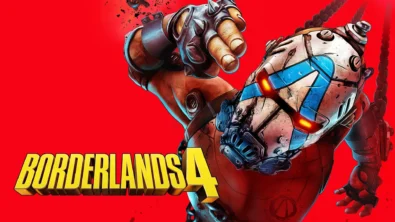
Borderlands 4 sets a co-op goal for this weekend: hit 500,000 successful teammate revives between February 12-15 to unlock a universal cosmetic skin. A minor update adds three Weekly Big Encore boss fights to raise the stakes.
February 13, 2026
6
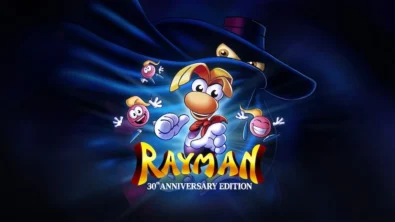
A milestone collection bundles five classic Rayman versions, a first-ever playable SNES prototype, reimagined music, modern assist options, and over 50 minutes of developer interviews.
February 13, 2026
6

Співпраця
Співпраця - текст
TopGame Newsletter!
Unlock exclusive gaming deals, fresh guides, and insider picks — straight to your inbox. No spam, just real content for real players.
