


Popular articles



Gamechat on Switch 2 Explained – Features, Limits and Access
Table of Content

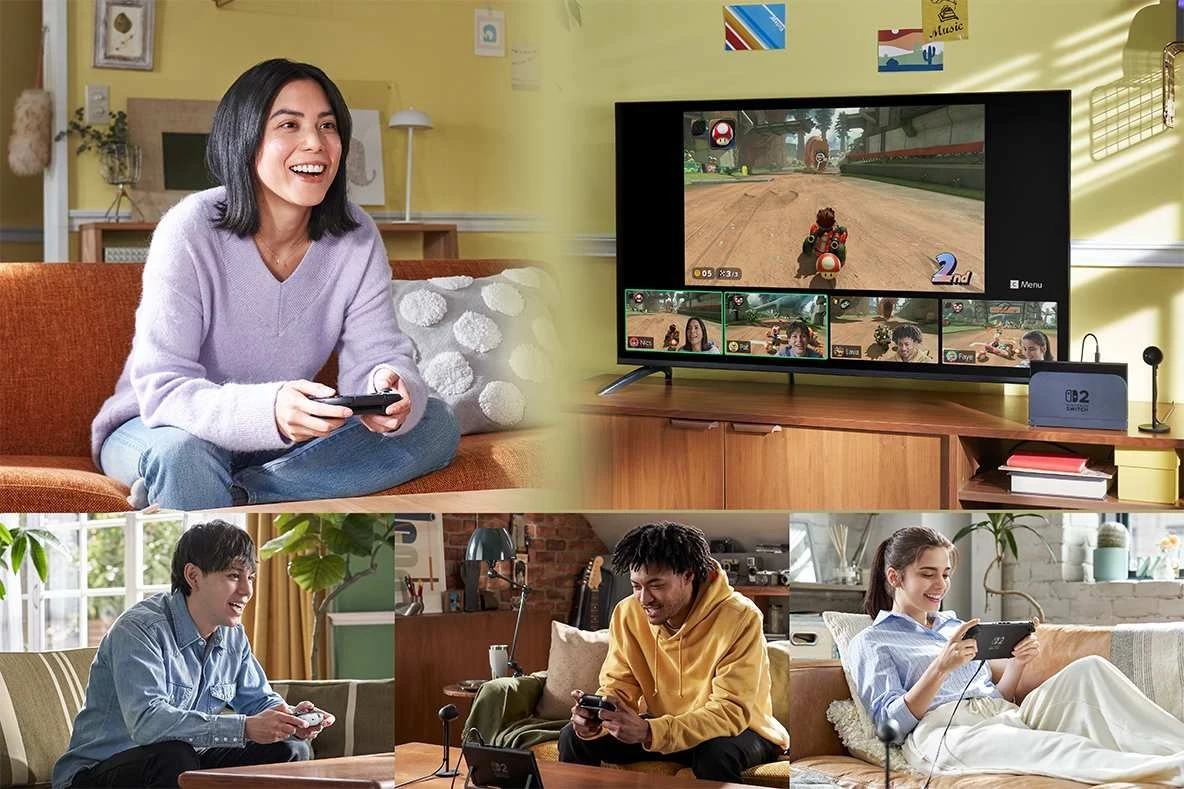
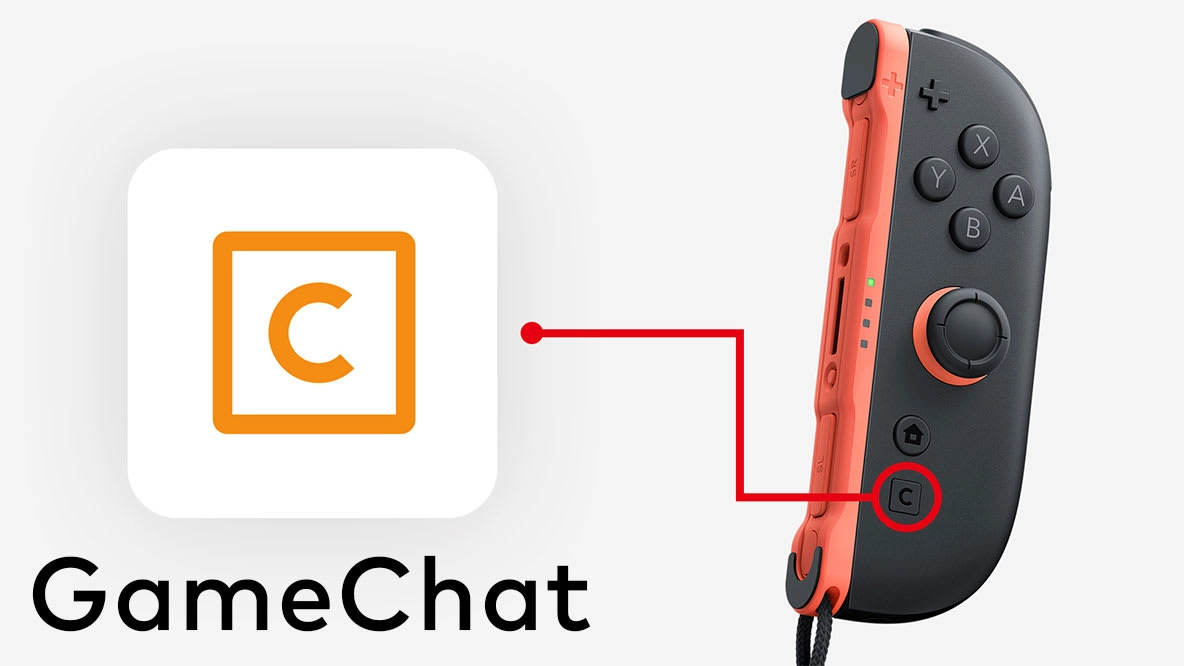
Nintendo has outlined how GameChat works on Nintendo Switch 2 – an online feature exclusive to the system that’s designed to mimic the feel of couch co‑op when friends are spread across different regions. The service integrates voice chat, screen sharing and optional video feeds directly at the system level. A built‑in microphone handles voice, and GameChat groups can be launched from the right Joy‑Con’s C Button. Access is free until March 31, after which GameChat use requires a Nintendo Switch Online membership.
What Gamechat Is Trying to Solve
GameChat aims to bring players together in one persistent space while everyone plays – even if each person is in a different game. Friends can jump into a group, talk, and share what they are doing, making it a virtual hangout rather than a single‑game party.
Core Features at a Glance
Nintendo lists the following participation limits and options. These caps define what a group can do at once and help set expectations for larger sessions.
Getting Started and Access Requirements
All participants must be on Nintendo Switch 2. A one‑time setup is required and uses the phone number registered to a Nintendo Account. Players can control which friends on their Friend List are permitted to use GameChat with them. For users under 16, additional steps apply and setup should be completed with a parent or guardian.
GameChat is free until March 31. After that date, using it online requires an active Nintendo Switch Online membership and an internet connection. Availability may vary by country.
Controls, Invites and Live Options
Press the C Button on the right Joy‑Con 2 to open the GameChat menu and send invitations – recipients get a notification on their system. Pressing the C Button again brings up quick controls to mute/unmute your mic, toggle the camera, share your screen and open Settings. Selecting a friend in the chat reveals person‑specific actions, including the option to expand that friend’s shared game screen.
Read also our article: Mario Tennis Fever Serves up Its Full Lineup Ahead of February 12
If someone is sharing a game you are curious about, you can use View Software Information from the same menu to jump to details in Nintendo eShop.
Settings and Accessibility Tools
- Screen layout – Expand the main game view, resize video tiles, or remove feeds entirely to focus on your own gameplay.
- Chat audio – Adjust overall chat volume to balance game and voice levels.
- Camera video – Options include zoom, face‑focused framing and background removal for on‑camera participants.
- Accessibility – Display voice as on‑screen text or convert text messages in GameChat into spoken audio.
Other Useful Notes
- The system’s built‑in microphone is tuned to isolate voices and reduce ambient noise.
- Screen sharing can be used for introductions to new games, troubleshooting tricky sections together, or simply hanging out while playing different titles at the same time.
Bottom Line for Players
Why it matters – GameChat centralizes voice, screen share and optional video on Switch 2, making it easier to keep a group together across multiple games. If you plan to use it long‑term, note the free‑until‑March‑31 window and the subsequent Nintendo Switch Online requirement.
Category
Share the news


Meet the Author


Article:
Read all

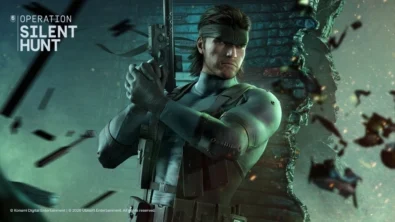
Solid Snake joins Rainbow Six Siege on March 3 with intel‑driven tools and scavenging gameplay. A few weeks later, a limited‑time 4v4 infiltration mode arrives alongside map and balance updates.
 February 15, 2026
 3
3
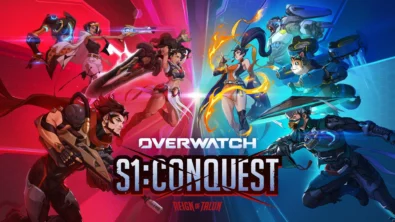
Season 1 opens the first chapter with Domina, Emre, Mizuki, Anran, and Jetpack Cat, plus the Conquest meta race between Overwatch and Talon. The world will update in real time as the story unfolds.
February 14, 2026
3
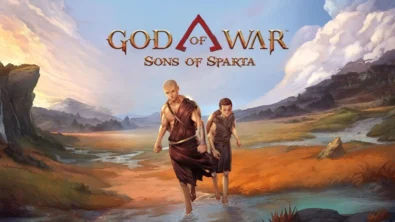
Kratos’ Spartan youth becomes playable in God of War Sons of Sparta – a canon, pixel‑art 2D prequel on PS5 with customizable spear‑and‑shield combat, Gifts of Olympus, and returning voice talent.
February 13, 2026
5
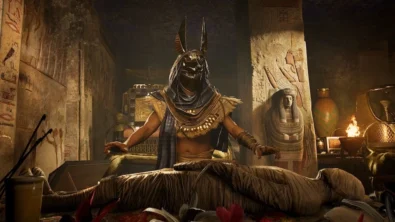
Ancient embalming, step by step – a new museum installation built on Assassin’s Creed Origins’ Discovery Tour lets visitors explore mummification interactively at Musée de l’Homme, open November 2025-May 2026.
February 13, 2026
6
Read also
Season 1 opens the first chapter with Domina, Emre, Mizuki, Anran, and Jetpack Cat, plus the Conquest meta race between Overwatch and Talon. The world will update in real time as the story unfolds.
February 14, 2026
3
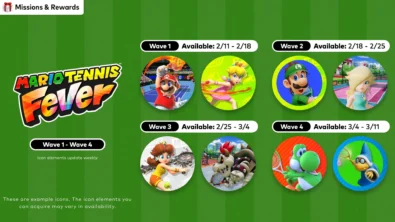
New Mario Tennis Fever-themed icon elements are time-limited and rotate across four waves. Availability runs 2/11-3/11 (PT), with monthly refreshes in the Nintendo Switch Online app.
February 13, 2026
6
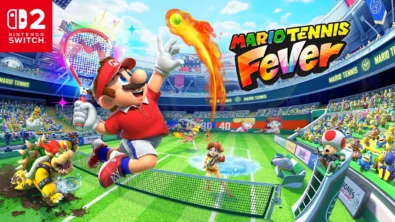
Mario Tennis Fever arrives on Nintendo Switch 2 with 30 Fever Rackets, a 38-strong roster (including new faces), and 8 distinct modes—plus a baby-sized Adventure Mode twist.
February 13, 2026
7

The series brings all three golf majors to Nintendo Switch 2 for the first time, alongside deeper MyCareer tools and cross-platform play — with daily and weekly tournaments to climb.
February 11, 2026
7
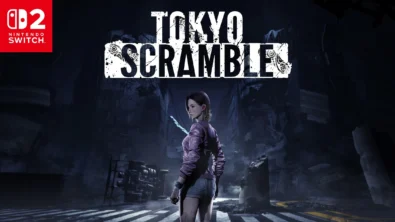
Anne wakes beneath Tokyo with dinosaur-like predators on her trail. TOKYO SCRAMBLE mixes stealth, strategy apps, and heart-rate management, plus co-op for up to four via GameShare on Nintendo Switch 2.
February 11, 2026
7
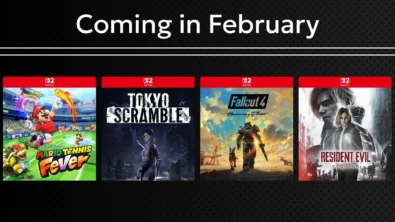
Remakes, horror, sports and sci‑fi strategy headline Nintendo’s February slate. Here are the exact dates, platforms and core features straight from the official roundup—no fluff, just facts.
February 11, 2026
8
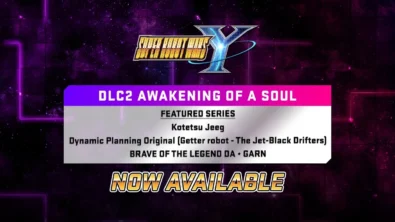
DLC Pack 2 lands for Super Robot Wars Y with new series and 26 missions, while a free update brings Battle Rush 2’s 20-wave challenge and raises progression ceilings for pilots, mechs and weapons.
February 6, 2026
10
Following player feedback, CODE VEIN II is prioritizing frame rate improvements and stability, with ongoing patches planned for the full game on every platform. Balance changes and broader performance fixes are also on the road...
February 6, 2026
12
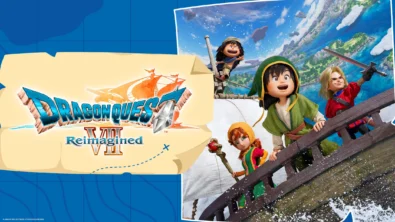
Square Enix brings DRAGON QUEST VII back on Nintendo Switch and Switch 2 with a diorama look, a leaner story structure, and overhauled combat — including dual vocations and faster, more tactical battles.
February 6, 2026
11

Switch 2 picks up steam as Nintendo details dates for Indiana Jones, Fallout 4, FFVII Rebirth, Resident Evil Requiem and more – plus classic revivals and new exclusives landing as soon as today.
February 6, 2026
15

Співпраця
Співпраця - текст
TopGame Newsletter!
Unlock exclusive gaming deals, fresh guides, and insider picks — straight to your inbox. No spam, just real content for real players.
